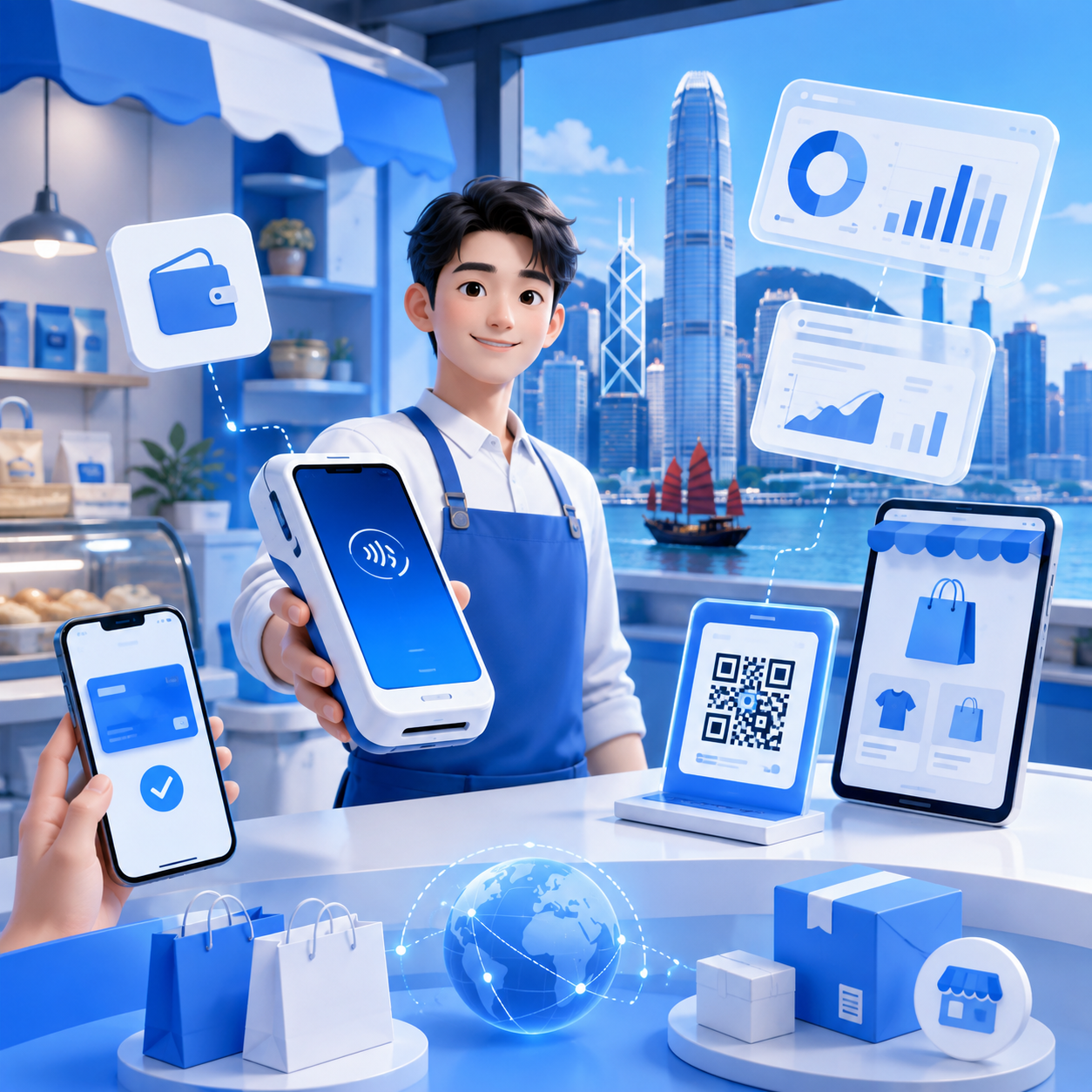
POS Machine Tutorial 2026 | Practical Operations for F&B/Retail (Super Detailed Steps)
As we step into 2026, whether you're opening a boutique coffee shop or a trendy fashion store, checkout speed often directly dictates the customer's experience. However, with increasingly powerful systems, many small and medium-sized business owners and frontline staff might initially feel overwhelmed. This article provides you with the most comprehensive and practical POS system tutorial, covering everything from basic startup settings to checkout techniques during peak hours.

As we step into 2026, whether you're opening a boutique coffee shop or a trendy fashion store, checkout speed often directly dictates the customer's experience. However, with increasingly powerful systems, many small and medium-sized business owners and frontline staff might initially feel overwhelmed. This article provides you with the most comprehensive and practical POS system tutorial, covering everything from basic startup settings to checkout techniques during peak hours.
Quick Overview
- POS Machine Functions Explained
- POS Machine Startup & Setup
- Common Cashier Procedures & Practical Operations
- 3 Major Practical Advantages of Wonder Terminal to Simplify POS Machine Operations
- Most Common POS Machine Problems for New Users
What is a POS Machine? Beginners, Clarify Basic Concepts First (Quick Start Guide)
What is a POS System? What Functions Does It Include?
POS (Point of Sale) refers to a 'Point of Sale Terminal System.' In commercial applications, it has evolved into a comprehensive business management platform. The system not only handles transactions but also extends its functions to real-time inventory tracking, employee attendance management, loyalty programs (CRM), and automatic generation of financial reports.
How Do POS Machines Differ from Traditional Cash Registers?
Traditional cash registers typically only allow manual entry of amounts and printing receipts. All reconciliation and inventory counts must rely on manual paper records, making them highly prone to errors. In contrast, smart POS machines automatically sync all business data to the cloud and are compatible with contactless payments.
Differences in POS Machine Usage Between F&B and Retail
Although both sectors use POS machines, the actual operational workflows are vastly different. F&B systems particularly focus on 'table management for dine-in,' split billing, kitchen ticket printing, and integrating orders from delivery platforms. Retail systems, on the other hand, emphasize barcode scanning, managing multiple product specifications, and automatic calculation of promotional discounts.
How to Start a POS Machine? Essential Pre-Opening Settings (Using Wonder POS Machine as an Example)
For new employees, the first challenge each morning is often figuring out how to start the POS machine. In reality, the design of new-generation terminals is very user-friendly.
POS Machine Startup Steps
The POS machine startup process is very simple. Taking the Wonder POS machine as an example, just long-press the power button on the side of the device for a few seconds, and the screen will light up, automatically loading the system. After entering the login screen, input your assigned employee ID and password (or tap your employee card to log in) to access the main cashier interface.
3 Things to Check After Startup
After the basic startup, you must quickly check these three settings:
Network Connection (WiFi/4G)
POS systems are highly dependent on cloud data. Please ensure that the WiFi or 4G signal in the upper right corner of the screen is strong. If the connection is interrupted, most electronic payments and data syncing will be unavailable.
Battery Level and Device Status
Check if the terminal's battery level is sufficient for a full day's operation. If using a wireless mobile model, ensure that the backup battery is fully charged. Also, open the printer compartment and confirm that there's enough receipt paper roll (thermal paper) to avoid running out mid-transaction.
Are Products/Menus Synced?
The store manager might have changed product prices or marked items as sold out the night before. Before starting operations, staff must click the 'Data Sync' button within the system to ensure the in-machine menu and price list are the latest versions, preventing confusion.
How to Checkout with a POS Machine? Most Common Cashier Procedure (Practical Steps)
General Checkout Process (from Scanning to Completing Transaction)
- • Select the items the customer is purchasing on the screen, or use a scanner to read product barcodes
- • After confirming the total quantity and amount in the shopping cart are correct
- • Click the 'Checkout' button
- • Then ask the customer for their payment method and select the corresponding payment channel in the system
- • After the payment is processed, the system will automatically pop open the cash drawer or print a receipt
- • Finally, hand the receipt to the customer to complete the entire transaction
Different Payment Method Operations
Cash Collection Process
After selecting 'Cash' in the system, enter the actual amount the customer provides (e.g., spending $120, customer gives $500). The system will automatically calculate and display the change due ($380) on the screen. At this point, the cash drawer will automatically open. The staff verifies the change amount, hands it to the customer, and then closes the cash drawer.
Credit Card / Electronic Payment (Octopus, etc.)
If the customer chooses non-cash payment, select the corresponding option on the screen (e.g., Visa, Octopus, or PayMe). The terminal will immediately enter sensing mode. Please ask the customer to place their physical card, smartphone, or smartwatch near the sensing area, or scan the dynamic QR Code displayed on the screen. Upon hearing a 'beep' sound and seeing a success message, the authorization is complete.
How to Handle Change, Refunds, and Transaction Cancellations
If a customer changes their mind or a product is found to be defective requiring a refund, the staff needs to go to the system's 'History Orders' or 'Refund' page and input or scan the transaction number from the original receipt. To prevent fraud, performing 'cancel transaction' or 'refund' usually requires a manager or supervisor to enter an advanced authorization password. Once approved, the system will process the refund according to the original payment method (refund to credit card or cash).
3 Major Practical Advantages of Wonder Terminal for SMEs
After understanding the complexities of traditional systems, which smart device is the right choice? Wonder Terminal is specifically designed to solve the needs of Hong Kong SMEs, perfectly optimizing every step mentioned above.
Ready-to-Use, Simplifies POS Machine Operations
Wonder Terminal features an integrated design, eliminating the hassle of complex wiring and network installation. Say goodbye to tedious POS machine startup settings; staff just need to lightly press the power button, and the system instantly loads an intuitive and easy-to-understand interface, significantly reducing training time for new employees.
Supports Multiple Payment Methods, Boosts Checkout Speed
It eliminates the cluttered appearance of multiple card readers and QR code payment stands at the counter. A single Wonder Terminal device can rapidly process major credit cards, Octopus, FPS, and various cross-border e-wallets.
Real-time Sales Data, Convenient for Daily Closing & Analysis
All transactions processed via Wonder Terminal are synced in real-time to the cloud management backend. Even if store owners are not on-site, they can check daily turnover, best-selling product rankings, and inventory status anytime. At closing time, the system can generate daily reports with a single click, completely eliminating manual reconciliation errors and effort.
Most Common POS Machine Problems for New Users
What to Do If There's No Internet Connection After Startup?
If you encounter a network outage, first check if the in-store router is operating normally and try restarting it. If the store's broadband fails, Wonder Terminal usually comes with a SIM card slot, allowing you to immediately switch to 4G mobile network as a backup, ensuring business and electronic payments are not disrupted.
How to Handle Customer Payment Failure?
When 'Transaction Failed' appears after tapping a card or scanning, staff should remain calm and ask the customer to check their mobile network or sufficient balance in their e-wallet. If the device is unresponsive, try restarting the checkout process or ask the customer to use another credit card. Do not let the customer leave until the transaction is successful.
How to Fix Cashier Errors (Overcharged/Undercharged)?
If you discover you've overcharged or undercharged a customer, you must immediately apologize to them. Then, use the system's 'Void' function to invalidate the erroneous order, and re-enter the correct items and amount to complete the checkout. All voided records will be retained in the system backend for future verification.
You may also like